A clean scan is not proof that your website is accessible. An automated wcag audit tool can flag detectable barriers, but a reassuring score may leave important issues undiscovered. Understanding what a scanner can and cannot tell you is more useful than focusing only on the number of issues it reports.
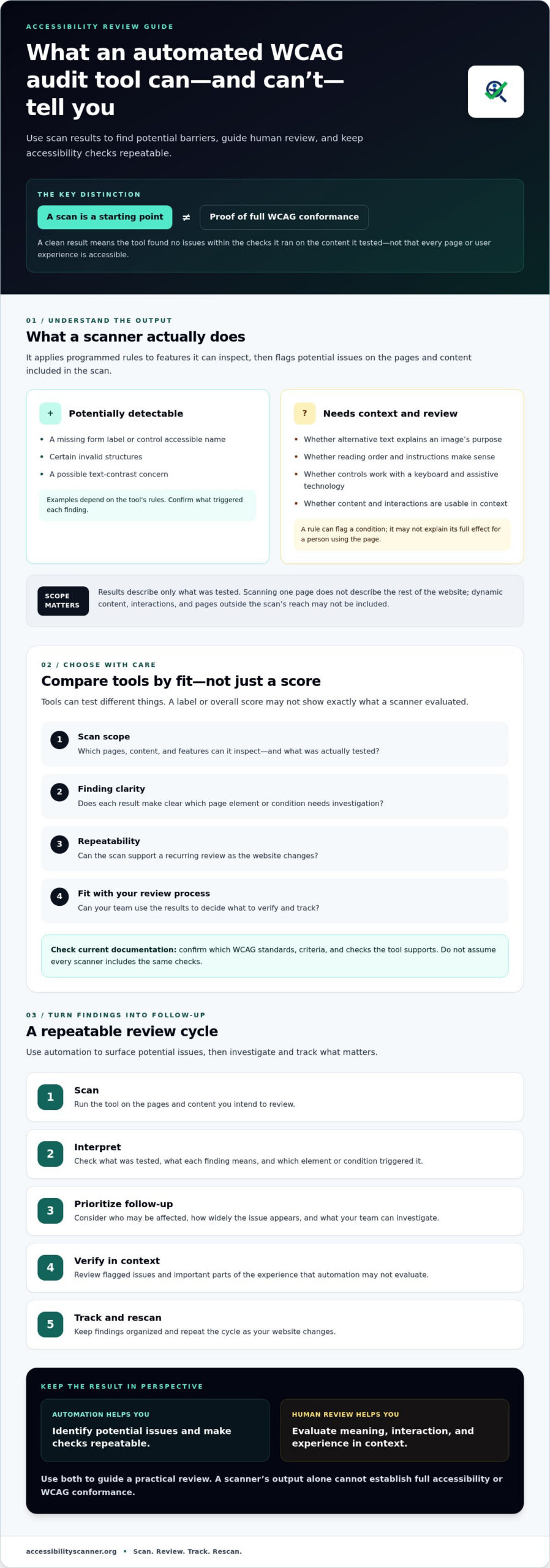
Automated findings are a starting point for prioritizing review, not proof of full WCAG conformance. Some barriers require human judgment and context to assess. If you’re comparing scanners or deciding what to do with their results, knowing those limits helps you choose a practical next step.
This guide explains what automated WCAG audit tools can detect, where they fall short, and which capabilities to compare. You’ll also learn how to use scan results to prioritize follow-up checks and make accessibility reviews repeatable as your website changes. The aim is a clear process: identify potential issues, verify what needs closer review, and track findings over time.
Key Takeaways
- Compare tools by scan scope, finding clarity, repeatability, and fit with your review process.
- Check each tool’s current documentation to confirm which WCAG standards and checks it supports.
- Use an automated wcag audit tool to surface potential issues, then decide which findings need closer evaluation.
- Prioritize follow-up by considering who may be affected, how widely the issue appears, and what your team can investigate.
- Build a repeatable cycle of scanning, reviewing, tracking, and rescanning as your website changes.
What an automated WCAG audit tool does, and what it does not
An automated WCAG audit tool checks website content and code for accessibility issues its programmed rules can detect. It provides a repeatable first look at selected pages and can surface potential barriers for further review. It does not assess every aspect of how people experience your site, and a scan is not a complete accessibility evaluation or proof of conformance.
Tools are built to test against rules connected to the Web Content Accessibility Guidelines (WCAG), but their checks can differ. One scanner may test for a detectable issue that another does not. Check each tool’s current documentation to see which standards and checks it supports. A tool’s label or overall score may not tell you exactly what it evaluated.
What does an automated accessibility scan produce?
A scan produces findings, meaning potential issues detected on the pages and content it tested. Depending on its rules, a finding might flag a missing form label or a possible text-contrast concern. Treat these as signals to investigate, not final judgments about whether a page works for every user.
Scope matters. If you scan one page, the results describe that page, not necessarily the rest of your website. Dynamic content, interactions, and pages outside the scan’s reach may not be included. Before drawing conclusions, confirm what was tested and what each result means according to the scanner.
Why a scan is not proof of WCAG conformance
Automated checks can’t assess every user experience or WCAG criterion. Some questions depend on context: does a text alternative communicate an image’s purpose, does an interaction make sense when used, or can someone complete a task with assistive technology? A rule-based scan may identify a potential issue, but it can’t reliably settle every question that depends on meaning and use.
Use findings to guide follow-up, not to declare the site accessible. Verify flagged issues and investigate important parts of the experience that a scanner may not evaluate. Automation makes checks repeatable, but it cannot replace broader evaluation or establish full conformance on its own.
To compare tools with these limits in mind, see this WCAG compliance scanner selection guide. It can help you assess scope and fit without treating a scanner’s output as a guarantee.
How automated WCAG audit tools detect issues, and where they miss context
A scanner applies programmed rules to features it can inspect, such as page markup, accessible names, or certain visual properties. It compares what it finds with the checks built into the tool and flags possible concerns. The result is a rule-based signal, not a complete account of how someone experiences the page.
Scanners don’t all test the same things. Before relying on an automated wcag audit tool, check its current documentation for the standards, criteria, and page features it evaluates. The W3C’s Web Accessibility Evaluation Tools List can help you explore available tools. Each tool’s own documentation explains its specific coverage.
Which accessibility barriers may be detectable automatically?
Depending on its checks, a tool may flag a control that appears to lack an accessible name, certain invalid structures, or a possible contrast issue. These are examples of potential automated checks, not features to assume every scanner includes. Read each finding and confirm which page element or condition triggered it.
Even a specific flag needs interpretation. A detected issue can point you to an element, but the result may not explain the barrier’s full effect or what happens in the surrounding interaction. Treat the output as a prompt for investigation, then verify the concern in context.
Which accessibility questions still need human review?
Some questions depend on meaning and use. Does alternative text describe an image’s purpose? Does the reading order make sense? Are instructions clear enough to follow? A scanner may identify a missing value or structural pattern, but it can’t reliably judge whether the content communicates well to the people who need it.
Keyboard use and screen-reader behavior also call for follow-up. Check whether someone can reach and operate interactive controls with a keyboard, and whether assistive technology presents content and interactions in a usable sequence. These checks examine the experience, not just whether an element matches a detectable rule. For plain-language context on WCAG principles and their practical meaning, read WCAG guidelines explained in plain English.
A clean scan means only that the tool found no issues within the checks it ran on the content it tested. It doesn’t establish that the page is fully accessible. To start identifying potential issues, try the free accessibility scanner, then use its findings to guide further review.
How to compare automated WCAG audit tools for your website
Choose a scanner based on the work you need it to support, not a broad feature label or score. An automated WCAG audit tool should fit the pages you need to review, provide findings your team can interpret, and support a repeatable process. When you start a scan, note what the tool asks you to test. Confirm its scope in the documentation rather than assuming it can evaluate your whole site or every interaction.
Which tool capabilities matter most to your team?
Match the tool to the task. A quick triage scan, a recurring review, and developer testing may call for different workflows. Consider who will read the findings: a developer may need a precise element reference, while a non-specialist reviewer may need a clear explanation of the concern. Then check whether the documented scan scope fits the pages and content your team plans to evaluate.
| Compare | What to check | Question for your team |
|---|---|---|
| Scan scope | Documented pages, content, standards, and checks | Does it cover the content we need to review? |
| Finding clarity | Issue description, affected element, and guidance on what triggered the finding | Can the intended reviewer understand what to investigate? |
| Repeatability | Whether you can run the same review process again and compare findings | Can we use it consistently during site maintenance? |
| Workflow fit | Steps required to begin and how results can be used by your team | Can the people responsible for review use it in practice? |
How to interpret tool claims and coverage
Look for named WCAG versions and specific checks, not just broad claims of “compliance” testing. Check how the tool handles dynamic content and interactive states, and verify the answers in current documentation. If a capability isn’t clearly documented, treat it as an open question rather than assuming a feature label proves it. The Web Accessibility Evaluation Tools List is a useful starting point for exploring tools, but it doesn’t replace checking each tool’s scope.
ADA-focused wording can also be easy to misread. A label alone doesn’t tell you which standards, criteria, or pages a scanner checks. Use this free ADA compliance checker guide to understand the terminology, then compare each tool’s documented checks with your actual review needs.
A practical workflow for using an automated WCAG audit tool
A scan becomes useful when its findings feed into a clear review process. Use this workflow to move from selected pages to verified follow-up, without treating scan output as a finished accessibility assessment.
- Select representative pages. Include important page types and key user journeys, such as a form or checkout flow. Record what you selected so future scans can use a comparable scope.
- Scan the pages. Note the tool and its documented checks. Don’t assume the scan covers pages or interactions outside the scope you ran.
- Review the findings. Record each flagged concern alongside its page and, when provided, the affected element. Group related findings, but keep enough detail to locate each one.
- Validate the concern. Ask an appropriate reviewer to check whether the issue is present and how it affects the page. Follow up with keyboard or assistive technology testing where relevant.
- Track next steps. Record the finding, page, review status, owner, and planned follow-up. Use a shared tracker if the tool doesn’t provide a suitable way to manage these details.
- Retest and rescan. After changes, retest affected pages and repeat the scan using the same documented scope where possible. Keep unresolved items visible for the next review.
Turn scan results into a review queue
Don’t prioritize by issue count alone. Consider potential user impact, how many pages or journeys may be affected, and whether your team can investigate the concern. A finding on a key interaction may warrant prompt attention, while several repeated alerts may share one underlying cause. Confirm the pattern before grouping items or setting priorities.
Mark each item as confirmed, not reproduced, or needing more investigation. These statuses help prevent unverified flags from being treated as established barriers. Assign an owner and a next step so findings don’t stall in a list.
Verify fixes and make scanning repeatable
After addressing an issue, check the affected page again. Repeat relevant keyboard and assistive technology checks, especially for interactive elements and task flows. A clear scan result can support the review, but it doesn’t replace testing the experience itself. Record unresolved items and when they should be reviewed again.
Use an automated WCAG audit tool as one input to this cycle, not as the authority on remediation or legal decisions. Those decisions may require expertise beyond automated scanning. To begin identifying potential issues in your own review process, run a free accessibility scan.
Choose an automated WCAG audit tool that fits your next step
The right tool helps you take a useful next step, not simply make the boldest compliance claim. Automated scans can provide repeatable findings, but they can’t judge every interaction or the full experience of using a website. Match the scanner to your immediate need, then decide how findings will be reviewed and followed up.
If you need an initial check, a free automated checker can help surface potential issues. If your team needs a closer assessment of interactions, assistive technology use, or conformance, automated scanning alone may not be enough. Check the scanner’s current documentation to understand its supported standards and checks before deciding how much weight to give its results.
When a free automated checker is a useful starting point
AccessibilityScanner.org provides a free automated accessibility checker that detects potential website issues related to ADA and WCAG. Use it as an entry point for issue discovery, not as a final compliance decision. Review what the scanner flags, confirm its documented coverage, and identify questions that need further investigation.
Some findings may require technical expertise to assess or address. Other questions may call for manual evaluation or legal expertise. AccessibilityScanner.org doesn’t provide manual audits, code remediation, or legal advice, so scan results are not a substitute for those forms of support when they’re needed.
Take the next step without overstating scan results
Start with a representative page and follow the scanner’s current instructions. Review the findings against the page, record what needs investigation, and decide who should follow up. A scan can help your team begin a structured review, but it can’t promise that all barriers have been found or that risk has been eliminated.
Choose an automated wcag audit tool based on what you need to check now and how you’ll act on the results. Treat clear documentation, useful findings, and fit with your review process as practical selection criteria. Then take a concrete next step: try the free accessibility scanner.
Make your next accessibility review actionable
The right automated wcag audit tool helps you find potential issues and repeat checks as your website changes. Scan results are a starting point, not proof of full accessibility or WCAG conformance. Compare tools by their documented coverage and how clearly they support your team’s review process. Then validate findings and decide which need further technical, manual, or legal expertise.
AccessibilityScanner.org offers a free automated accessibility checker with immediate automated issue detection. Use it to surface potential barriers, review what the scan actually tested, and plan follow-up. Keep the limits clear: an automated scan doesn’t replace a broader accessibility evaluation, code remediation, or legal advice.
Start with a representative page and take one practical step toward a repeatable review. Run a free automated accessibility scan to identify potential issues and decide what to investigate next. Progress begins with knowing where to look, and a clear process can help your team keep moving.
Frequently Asked Questions
What does an automated WCAG audit tool check?
An automated WCAG audit tool applies programmed checks to website content and structure, then flags issues it can detect. Checks vary, so review the tool’s documentation to understand its standards and coverage. Findings can help identify potential barriers and decide what to investigate next. They don’t evaluate every interaction or establish that a website fully conforms to WCAG.
Can an automated WCAG audit tool confirm that my website is fully accessible?
No. Automated tools can detect some potential accessibility issues, but they can’t assess every context, interaction, or user experience. A scan with no findings doesn’t prove that a website is fully accessible or conforms to WCAG. Treat results as one part of a broader review, with human evaluation and appropriate assistive technology testing where needed.
How accurate are automated WCAG audit tools?
Accuracy depends on the tool’s checks, how it interprets page content, and whether the pages tested represent your website. Results may flag real barriers, but a reviewer may need to confirm what a finding means in context. Tools can also miss issues that require human judgment. Check documented coverage, test representative pages, and don’t treat a low issue count as proof that concerns are absent.
What should I compare when choosing an automated WCAG audit tool?
Compare each tool’s documented standards and checks, the clarity of its findings, the content it can test, and how easily your team can repeat reviews. Confirm what the results mean and what they can’t establish. Choose a tool that fits your workflow and your capacity to investigate findings. Don’t rely on broad compliance claims or assume a feature label proves specific coverage.
How often should I run an automated WCAG audit?
There’s no single schedule that suits every website. Consider scanning after significant content or interface changes and as part of a repeatable maintenance review. Your cadence depends on how often the site changes and how quickly your team can follow up. Scans can help flag potential issues, but they don’t replace reviewing new content and interactions as they’re introduced.
Do automated WCAG audit tools test screen-reader and keyboard accessibility?
Some tools may flag certain structural or keyboard-related concerns, but automated checks don’t reproduce every screen-reader or keyboard user experience. Coverage varies, so check the tool’s documentation before assuming these tests are included. Follow scan results with appropriate keyboard checks and assistive technology evaluation, especially for interactive content and important user journeys. This can help reveal usability barriers that automated rules may not identify.
Can AccessibilityScanner.org fix the issues found by its automated scan?
No. AccessibilityScanner.org provides a free automated accessibility checker that detects potential issues, but it doesn’t provide manual accessibility audits, code changes, or legal advice. Use its findings to identify areas that may need investigation, then involve your website team or appropriate specialists to evaluate and address confirmed concerns. A scan is a starting point, not a guarantee of ADA or WCAG compliance.