According to directional data from the Click-Away Pound Survey, 69% of disabled online consumers click away from websites they find difficult to use because of their disability. A keyboard user who cannot tab to your contact form’s error message does not get a second chance. They close the tab. The form looked fine to you when you tested it. The failure was invisible because you used a mouse.
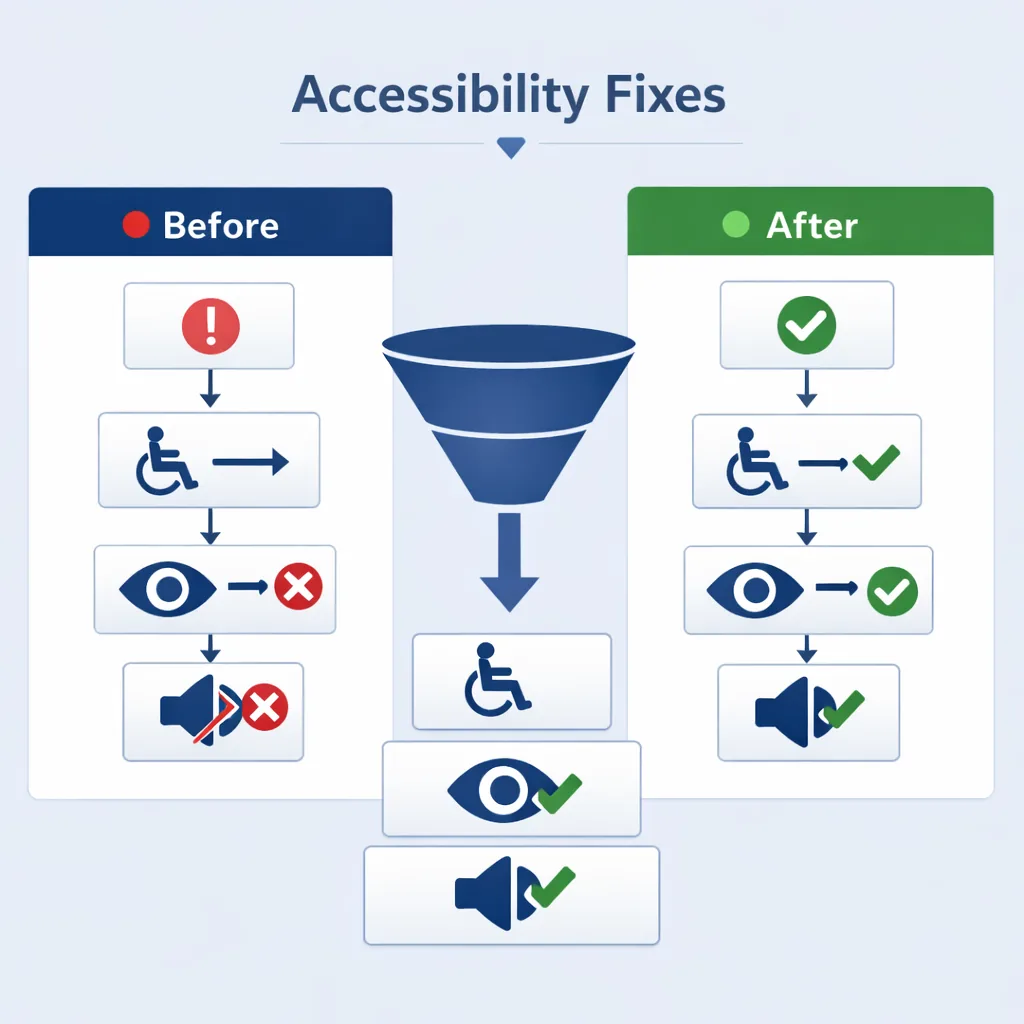
What is WordPress contact form accessibility? WordPress contact form accessibility means that every user – including people who rely on a keyboard, screen reader, switch device, or other assistive technology – can successfully complete and submit the form. A form passes accessibility requirements when: (1) every field has a visible, programmatically associated label; (2) required fields are marked in both text and code; (3) error messages are specific, adjacent to the failing field, and announced by screen readers; (4) all interactions work by keyboard alone without trapping focus; and (5) any CAPTCHA has an accessible alternative. Under WCAG 2.2 (the current W3C standard, published October 5, 2023), these requirements map to success criteria 1.3.1 Info and Relationships, 1.4.3 Contrast (Minimum), 2.1.1 Keyboard, 3.3.1 Error Identification, 3.3.2 Labels or Instructions, and 3.3.7 Accessible Authentication (Minimum). Businesses subject to the ADA, EAA, or Section 508 are expected to meet WCAG 2.1 AA at minimum, and WCAG 2.2 is now the recommended target for new builds.
This article walks through a 15-minute audit of WordPress contact form accessibility, plugin by plugin: the seven failure patterns most likely present in a default installation, a 2-phase test protocol you can run without a developer, a comparison of Contact Form 7, WPForms, Gravity Forms, and Ninja Forms, and a 10-item WCAG 2.2 checklist you can reuse after every update. Before you read further, run your contact page through the free website accessibility checker and keep the report open alongside this guide.
Why a Broken Contact Form Is a Specific Legal and Business Risk
Contact forms are one of the most common triggers for ADA accessibility complaints against small business websites. They are the primary mechanism for a potential customer to reach you. When that mechanism fails a disabled user, it is not an edge case. It is a documented access barrier.
Under ADA Title III, private businesses have no government-mandated compliance deadline for web accessibility. Enforcement is lawsuit-driven. Courts have consistently applied WCAG 2.1 AA as the de facto standard, and a contact form that fails basic label association or error announcement is exactly the kind of concrete barrier that plaintiffs cite in demand letters. You do not need discriminatory intent. You need a form that a screen reader user cannot operate.
The European Accessibility Act (EAA) came into force on June 28, 2025, adding a second enforcement path for businesses selling into EU markets. It applies to any company with 10 or more employees or €2M or more in turnover. Contact forms are explicitly in scope. If your site reaches EU visitors – and most do – you now have two separate compliance frameworks pointing at the same form.
The good news: checking your form takes about 15 minutes with the right process. Understanding your site’s accessible WordPress theme is the broader structural decision, but the form is where compliance failures most often show up in practice.
The 7 Most Common WordPress Contact Form Accessibility Failures
Default plugin settings frequently produce inaccessible output. These are the seven failure patterns most likely present in a standard WordPress installation, each tied to its specific WCAG 2.2 success criterion.
1. Missing or disconnected label
The field exists, but there is no <label> element, or the for attribute on the label does not match the id on the input. Screen reader users hear the field announced without any name. They have no idea what to type. This fails WCAG 1.3.1 Info and Relationships.
2. Placeholder text used as the only label The field shows “Your email” in gray text inside the input. The moment the user starts typing, that text disappears. Screen reader users lose context mid-entry. Sighted users with cognitive disabilities cannot refer back to what the field asked for. This also fails WCAG 1.3.1 Info and Relationships.
3. Non-descriptive or unannounced error messages The user submits the form, something fails, and either (a) the error message says “Invalid input” with no detail, or (b) the error message is visually present but never announced to the screen reader. The keyboard user has no idea the form did not submit. This is the most damaging failure pattern. It violates WCAG 3.3.1 Error Identification and WCAG 3.3.3 Error Suggestion.
4. Required fields marked only by color or an unexplained asterisk
The asterisk convention is not universal. A user who does not know that * means “required” will not know why their submission failed. The convention must be explained in text near the top of the form. Color alone cannot convey information under WCAG 1.4.1 Use of Color, and the programmatic association of “required” status falls under WCAG 1.3.1 Info and Relationships.
5. Keyboard trap or missing focus indicator The user tabs into the form but cannot tab out. Focus is trapped, usually by a custom-styled date picker or modal overlay. Or the focused field shows no visible outline, so keyboard users cannot tell where they are. Both patterns fail WCAG 2.1.1 Keyboard and WCAG 2.4.7 Focus Visible (strengthened by WCAG 2.4.11 Focus Appearance in WCAG 2.2).
6. Inaccessible CAPTCHA A visual-only CAPTCHA with no audio alternative and no logic puzzle option locks out blind users and many users with cognitive disabilities entirely. This violates WCAG 1.1.1 Non-text Content. WCAG 2.2’s WCAG 3.3.7 Accessible Authentication (Minimum) further prohibits cognitive function tests – like identifying distorted characters – without an accessible alternative.
7. Post-submission focus management failure This is the failure pattern no competitor covers. The user completes the form, presses Submit, and the form processes successfully. Focus returns to the top of the page, or stays on the Submit button, with no announcement that anything happened. A screen reader user has no confirmation of success. This fails WCAG 4.1.3 Status Messages, which requires that status messages be programmatically determinable without receiving focus.
The 2019 Click-Away Pound Survey found that 83% of disabled users limit their online shopping to websites they already know are accessible. A contact form that blocks them is not a minor inconvenience. It removes them from your conversion funnel entirely.
How to Check Your WordPress Contact Form for Accessibility: A 2-Phase Protocol
This is a 2-phase, 15-minute check. Phase 1 uses an automated scanner. Phase 2 uses only a keyboard and optionally a free screen reader. A business owner can complete steps 1 through 3 of Phase 2 without any assistive technology installed.
Phase 1 – Automated Check (approximately 5 minutes)
Navigate to the page on your site that contains the contact form. Run that URL through the free website accessibility checker. When the report returns, look specifically for flags against these criteria:
- WCAG 1.3.1 Info and Relationships – catches missing labels, disconnected
for/idpairs, and unmarked required fields - WCAG 3.3.1 Error Identification – flags forms where error states are not programmatically exposed
- WCAG 1.4.3 Contrast (Minimum) – catches low-contrast field borders, placeholder text, and button labels
- WCAG 1.1.1 Non-text Content – flags image-based CAPTCHAs without text alternatives
Automated tools are a starting point for WordPress form accessibility, not a finish line. They surface structural markup failures well, but they cannot test whether error messages are actually announced to a screen reader, whether keyboard navigation flows correctly, or whether focus is managed correctly after submission. Industry practitioners generally estimate that automated scans catch somewhere between 30 and 40 percent of real-world accessibility issues. Treat that as a directional estimate, not a sourced figure. Phase 2 covers what automation misses.
Phase 2 – Manual 5-Step Keyboard and Screen Reader Check (approximately 10 minutes)
Step 1 – Tab navigation test. Open your contact form page. Click somewhere above the form, then press Tab repeatedly. Every field, button, and interactive element inside the form should receive focus in left-to-right, top-to-bottom visual order. Each focused element should show a visible outline. If you lose track of where focus is, that is a WCAG 2.4.7 Focus Visible failure.
Step 2 – Label association test. Click on the label text next to each field. Not the field itself – the label text. The corresponding input should immediately receive focus. If nothing happens when you click the label, the label is not programmatically associated with the field. That is a WCAG 1.3.1 Info and Relationships failure, and it means screen reader users will not hear the label announced when they navigate to the input.
Step 3 – Required field and error test. Tab to the Submit button without filling in any fields. Press Enter or Space to submit. The form should not submit silently. Specific error messages must appear adjacent to each failing field. Note whether you can tell, using only the keyboard, what went wrong and how to fix it. This tests contact form keyboard navigation and WCAG 3.3.1 Error Identification compliance.
Step 4 – CAPTCHA and submission test. If your form includes a CAPTCHA, can you complete it without a mouse? Is there an audio alternative or a logic-based alternative (a simple math question, for example)? If the only option is a visual character identification challenge, that is a WCAG 1.1.1 Non-text Content and WCAG 3.3.7 Accessible Authentication (Minimum) failure.
Step 5 – Post-submission focus test. Complete the form successfully and submit it. After the confirmation message appears, where is your keyboard focus? It should move to the confirmation message or a visually distinct success announcement. If it stays on the Submit button, or returns to the top of the page, a screen reader user has no way to know the form succeeded. For steps 4 and 5, using a free screen reader (NVDA for Windows or VoiceOver on Mac) will give you the clearest signal. Turn it on, navigate the form by Tab key only, and listen to what gets announced at each stage.
Plugin-by-Plugin: What CF7, WPForms, Gravity Forms, and Ninja Forms Get Wrong by Default
Form accessibility depends less on which plugin you chose than on how it is configured. Default settings vary significantly across the four most common WordPress form plugins. The table below reflects plugin behavior as of 2025-2026 and WCAG 2.2 (October 2023).
| Plugin | Default Label Method | Error Announcement | WCAG 2.2 Compliant by Default? | Main Accessibility Risk |
|---|---|---|---|---|
| Contact Form 7 (v5.x) | Requires manual [label] tag in template |
Not announced to screen readers by default | No | Placeholder-only labels when [label] is omitted; missing aria-required; errors not live-announced |
| WPForms (current) | Labels generated by default | Partial – errors displayed but not reliably announced | Partial | Known label-association issues detected in automated audits; no formal published WCAG conformance statement |
| Gravity Forms (since v2.5) | Labels + ARIA attributes | ARIA live regions since v2.5 | Yes (WCAG 2.1 AA) | Multi-page forms need extra attention for focus management between steps |
| Ninja Forms (current) | Labels generated | Partial | Partial | Error messages may lack aria-describedby association in some field configurations |
Contact Form 7 (v5.x) is the most widely used WordPress form plugin and the most commonly misconfigured for accessibility. When a developer omits the [label] tag from the form template and relies on placeholder text instead, the field has no programmatically associated label. It fails WCAG 1.3.1 Info and Relationships immediately, and that placeholder text vanishes the moment the user starts typing. CF7 also does not announce validation errors to screen readers by default. A custom aria-live region must be added manually or via an accessibility add-on plugin.
WPForms generates labels automatically, which removes the most common CF7 failure. However, automated audits have surfaced label-association errors in some configurations, and the plugin does not publish a formal WCAG conformance statement. Error announcements are partial. Test Step 3 of Phase 2 carefully on any WPForms installation before launch.
Gravity Forms (since v2.5) ships with ARIA attributes and live region support, making it the strongest out-of-the-box option for accessible contact form requirements. Its main risk is multi-page forms, where focus management between steps can break down. Focus should move to the top of the next form section on page advance. Many configurations do not handle this correctly.
Ninja Forms generates labels but can produce error messages without proper aria-describedby associations, meaning the error exists in the DOM but is not reliably connected to the field that caused it. Test error announcement explicitly on any Ninja Forms build.
WordPress Contact Form Accessibility Checklist (WCAG 2.2)
Use this checklist before every contact form goes live and after any plugin update that touches form output.
- Every form field has a visible, programmatically associated
<label>element with matchingforandidvalues – WCAG 1.3.1 Info and Relationships - No field relies on placeholder text as its only label – WCAG 1.3.1 Info and Relationships
- Required fields are marked in text – not color alone – with the convention explained near the top of the form (e.g., “Fields marked with * are required”) – WCAG 1.3.1 Info and Relationships, WCAG 1.4.1 Use of Color
- Required fields include
aria-required="true"or the HTMLrequiredattribute in the markup – WCAG 1.3.1 Info and Relationships - Error messages are specific (“Please enter a valid email address”), adjacent to the failing field, and announced to screen readers via
aria-live="polite"orrole="alert"– WCAG 3.3.1 Error Identification, WCAG 3.3.3 Error Suggestion - The entire accessible contact form is operable by keyboard alone – no focus traps, full Tab and Shift+Tab navigation through all fields and buttons – WCAG 2.1.1 Keyboard
- Focus indicator is visible on all focused form elements; in WCAG 2.2, the enhanced WCAG 2.4.11 Focus Appearance specifies minimum size and contrast requirements for the focus ring – WCAG 2.4.7 Focus Visible, WCAG 2.4.11 Focus Appearance
- All form text – labels, button text, error messages – meets a 4.5:1 contrast ratio against its background; placeholder text meets 4.5:1 (not 3:1) because it functions as a label – WCAG 1.4.3 Contrast (Minimum)
- Any CAPTCHA has an accessible audio alternative or a cognitive-function-free alternative (such as a simple math question); image-based CAPTCHA without an alternative fails two criteria – WCAG 1.1.1 Non-text Content, WCAG 3.3.7 Accessible Authentication (Minimum)
- After successful submission, focus moves to the confirmation message or a screen-reader announcement confirms success – WCAG 4.1.3 Status Messages
The European Accessibility Act, in force since June 28, 2025, requires businesses selling into the EU with 10 or more employees or €2M or more in annual turnover to meet WCAG 2.1 AA. All ten items above meet or exceed that threshold. Items 7, 9, and 10 specifically address WCAG 2.2 additions that go beyond the EAA’s minimum floor – worth implementing on any new build.
What to Fix First: Prioritizing Contact Form Accessibility Issues
Not every failure carries the same weight. When remediation time is limited, work in this order.
Fix first – blocking failures. Missing labels, keyboard traps, and unannounced error messages block users entirely. A screen reader user who cannot identify a field or hear an error cannot submit the form under any circumstances. These are the failures most likely to generate an ADA complaint because they create a complete access barrier.
Fix second – serious failures. Placeholder-only labels, color-only required-field indicators, and non-specific error messages frustrate users but do not always prevent form completion. They increase abandonment and reduce trust, particularly for users with cognitive disabilities.
Fix last – polish-level issues. Focus indicator contrast improvements beyond the minimum, autocomplete attribute additions (autocomplete="email", autocomplete="name"), and post-submission focus management are meaningful improvements but rarely the reason a user cannot complete the form at all.
For teams with a longer issues list across multiple pages, How to Prioritize Accessibility Issues After Running a Website Scan provides the extended framework for working through scanner output systematically.
Running a scan through the free website accessibility checker identifies which tier your current form failures fall into and flags any additional WCAG violations on the surrounding page – header, navigation, footer – that may also contribute to your compliance exposure.
Frequently Asked Questions
Is Contact Form 7 accessible by default?
Contact Form 7 (v5.x) is not accessible by default. When developers use placeholder text instead of the [label] tag in the form template, fields have no programmatically associated labels, failing WCAG 1.3.1 Info and Relationships. CF7 also does not announce validation errors to screen readers without additional configuration. It can be made accessible, but it requires deliberate markup decisions or an accessibility-focused add-on.
How do I make a WordPress form keyboard accessible? Every field, button, and interactive element must be reachable by Tab key in visual order, with a visible focus indicator on each focused element. Focus must not be trapped inside any part of the form. After submission – success or failure – focus must move to the relevant message. Test this with Phase 2, Steps 1 and 5 of the protocol above.
What WCAG criteria apply to contact forms? The core criteria are WCAG 1.3.1 Info and Relationships (labels and required fields), WCAG 1.4.3 Contrast (Minimum) (text and form elements), WCAG 2.1.1 Keyboard (full keyboard operability), WCAG 2.4.7 Focus Visible and WCAG 2.4.11 Focus Appearance (focus indicators), WCAG 3.3.1 Error Identification and WCAG 3.3.3 Error Suggestion (accessible error messages), WCAG 3.3.7 Accessible Authentication (Minimum) (CAPTCHA alternatives), and WCAG 4.1.3 Status Messages (post-submission confirmation).
Which WordPress form plugin is most accessible? Gravity Forms (since v2.5) ships with the strongest default ARIA support, including live region error announcements and label associations. It is not perfect – multi-page forms require extra focus management attention – but it requires fewer custom fixes than Contact Form 7, WPForms, or Ninja Forms to reach WCAG 2.1 AA compliance out of the box.
Do I need to test my form after every plugin update? Yes. Plugin updates frequently regenerate form markup, and accessibility attributes added manually or via configuration can be overwritten. Run the WCAG 2.2 checklist above after any form plugin update, theme update that affects form styles, or change to your form template.
Other interactive elements on your contact page – including your cookie consent banner – need the same audit treatment. How to Make a Cookie Consent Banner Accessible covers the GDPR and accessibility overlap for that specific component.
A WordPress contact form that passes the 10-item WCAG 2.2 checklist above is usable by every visitor, reduces legal exposure under both ADA Title III and the EAA, and stops the silent abandonment that happens when a keyboard user hits an invisible wall. The failures are fixable. Most take under an hour once you know what you’re looking at. Scan your WordPress contact pages at accessibilityscanner.org to find out exactly where yours stand.
This article is for general informational purposes and is not legal advice.