What if treating accessibility as a pass-or-fail checklist leaves the biggest barriers untouched? The wcag guidelines can feel like a maze of principles, guidelines, success criteria, and conformance levels, especially when the terms blur together. WCAG is easier to use as a framework for identifying and reducing barriers, not as a certificate that one scan can provide.
If you’re unsure where principles end and criteria begin, or whether Level AA means your entire site is accessible, that confusion is reasonable. This guide explains the framework in plain English so you can understand what its requirements mean and make a responsible start without overstating what a test proves.
We’ll walk through the four POUR principles, explain how guidelines and success criteria fit beneath them, and clarify what A, AA, and AAA conformance levels mean. You’ll also learn why an automated accessibility scan can flag potential WCAG-related issues but can’t establish conformance on its own. Use scan results as an initial signal, then assess the experience more broadly and prioritize barriers that affect important tasks.
Key Takeaways
- See how WCAG’s principles, guidelines, and success criteria fit together, so you can read the framework without getting lost in its terminology.
- Use the four POUR principles to recognize different barriers that can prevent people with disabilities from using web content.
- Understand what A, AA, and AAA signal, and choose a conformance target with your site’s content, audience, and applicable requirements in mind.
- Apply the wcag guidelines by reviewing key pages for practical barriers such as keyboard access, missing text alternatives, unclear headings, form labels, and contrast.
- Build accessibility checks into publishing and release workflows, and treat automated scan results as a starting point rather than proof of conformance.
What Are the WCAG Guidelines, and Who Uses Them?
The Web Content Accessibility Guidelines (WCAG) are guidance from the World Wide Web Consortium (W3C) for making web content more accessible to people with disabilities. Website owners, designers, developers, and content creators use WCAG as a shared framework for finding barriers and improving how people access information and complete tasks online.
The wcag guidelines are a technical standard, not a website badge, testing product, or guarantee that every person can use a site. They set out accessibility requirements that can be evaluated against web content. Applying them can help reduce barriers, but whether an organization has legal obligations depends on the laws that apply to it. WCAG guidance and legal advice are not the same thing.
What does WCAG stand for?
WCAG stands for Web Content Accessibility Guidelines. The W3C develops and publishes the guidance to support accessible web content, including content people use with assistive technology such as screen readers. For a broader overview of WCAG’s history, versions, and core principles, see the Web Content Accessibility Guidelines overview.
In practice, WCAG helps teams ask specific questions about how people perceive and operate a website. Can someone navigate without a mouse? Can a screen reader convey the purpose of a control? Can users understand the page and its instructions? These questions connect technical requirements to real tasks.
Who benefits from WCAG guidance?
People with visual, auditory, physical, cognitive, and other disabilities may encounter different barriers online. Keyboard navigation can help someone who can’t use a mouse. Captions can make spoken information available to people who are deaf or hard of hearing. Readable text and clear page structure can make information easier to follow for people with low vision or cognitive disabilities.
Accessible features can also help people with temporary or situational limitations. Captions may be useful in a noisy environment. Keyboard access can help someone with an injured hand. Clear headings make it easier for any visitor to scan a long page. These examples show the practical value of accessible design, but no single change meets every need. Review the whole experience: how people find information, move through a page, and complete essential tasks.
How WCAG Is Organized: Principles, Guidelines, and Success Criteria
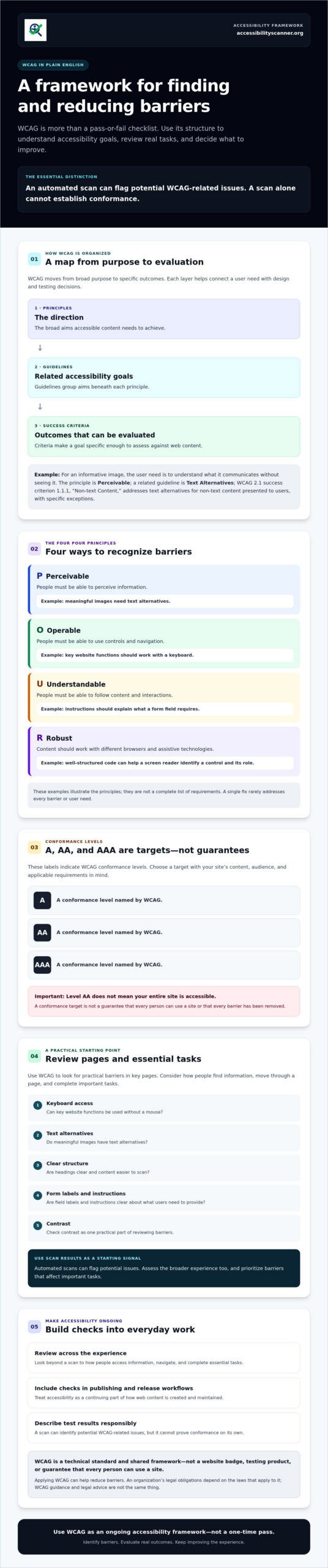
WCAG moves from broad purpose to specific outcomes: principles set the direction, guidelines group related accessibility goals, and success criteria describe outcomes that can be evaluated. Think of it as a map rather than a flat checklist. Each level helps teams connect a user need to design and testing decisions.
Principles explain what accessible content needs to achieve; guidelines organize those aims, and success criteria define outcomes for evaluating them. The four principles are Perceivable, Operable, Understandable, and Robust, often shortened to POUR. Each principle contains guidelines, and each guideline is supported by one or more success criteria. The official WCAG 2.1 guidelines show how this hierarchy is set out in the standard.
What does POUR mean in WCAG?
- Perceivable: People must be able to perceive information. For example, meaningful images need text alternatives.
- Operable: People must be able to use controls and navigation. For example, key website functions should work with a keyboard.
- Understandable: People must be able to follow content and interactions. For example, instructions should explain what a form field requires.
- Robust: Content should work with different browsers and assistive technologies. For example, well-structured code can help a screen reader identify a control and its role.
These examples illustrate the principles, not a complete list of requirements. A single fix rarely addresses every barrier or user need.
How do guidelines and success criteria work?
A guideline states a broad goal. A success criterion makes that goal more specific so teams can evaluate whether a page meets it. For example, under the Perceivable principle, the “Text Alternatives” guideline supports the goal of making non-text content accessible. WCAG 2.1 success criterion 1.1.1, “Non-text Content,” requires a text alternative for non-text content presented to users, with specific exceptions.
Example, an informative image: The user need is to understand what the image communicates without seeing it. The principle is Perceivable; the related guideline is Text Alternatives; and the success criterion directs the team to provide an appropriate text alternative. The right wording depends on the image’s purpose and context, so evaluating a criterion may require human judgment, not just a tool.
This structure makes the wcag guidelines easier to apply: start with the barrier a person may face, then trace it to the relevant goal and criterion. An automated checker can help flag potential issues during an initial review. For a first pass, you can use this automated accessibility checker, then assess each finding in context.
WCAG Conformance Levels: What A, AA, and AAA Actually Mean
A, AA, and AAA describe levels of WCAG conformance based on applicable success criteria. The levels build on each other: AA includes Level A criteria, and AAA includes criteria from both A and AA. A higher level adds requirements, but criteria at lower levels still matter. Meeting a level means conforming to its requirements, not simply passing a handful of checks.
| Level | Plain-English meaning |
|---|---|
| A | Addresses a foundational set of accessibility barriers. |
| AA | Adds broader requirements and is a common target in accessibility policies and regulations. |
| AAA | Adds the highest level of criteria, though meeting every AAA criterion may not be practical for all content. |
Choose a target based on applicable requirements, the type of content your organization publishes, and the needs of its users. Don’t assume AAA is automatically right for every page, or that A is sufficient simply because it is the starting level. Check which WCAG version and conformance level any policy or regulation actually references.
Is WCAG AA the same as full accessibility?
No. AA conformance describes whether the relevant success criteria are met. It can’t guarantee that every person will have a smooth experience in every context. People use different devices, assistive technologies, and ways of interacting with content. Combine criteria-based evaluation with varied testing methods, including feedback from people with disabilities where possible. No level guarantees usability or legal protection.
A scan or a review of selected criteria can identify useful signals, but it doesn’t establish full conformance on its own. A conformance claim has defined requirements, including the applicable pages and criteria. Treat partial results as findings to investigate, not proof that the site meets a level.
Are WCAG guidelines the same as accessibility laws?
No. WCAG is a technical standard; laws establish legal duties. In the United States, the Department of Justice’s 2024 ADA Title II rule adopts WCAG 2.1 Level AA for state and local government web content and mobile applications within the rule’s scope. Private businesses shouldn’t assume that one WCAG version is a universal federal requirement. Applicable obligations depend on the organization and circumstances.
Use the wcag guidelines to understand technical accessibility criteria, then confirm which legal requirements apply to your organization. For advice about specific obligations, consult qualified legal counsel. Neither a conformance level nor an automated result is a legal conclusion.
How to Start Applying WCAG Guidelines to a Website
Start with a focused review rather than trying to inspect every page at once. The wcag guidelines are easier to apply when you connect them to real user journeys, identify barriers, and track what changes.
- Select key pages. Begin with pages people need to complete essential tasks, such as finding service information, submitting a form, or making a purchase. Include page types with different layouts or features.
- Inspect for barriers. Check whether you can navigate and use controls with a keyboard. Look for meaningful text alternatives for images, a logical heading structure, clear form labels, and sufficient text contrast. These are useful starting points, not a complete accessibility review.
- Prioritize findings. Group issues by affected page, likely user impact, and whether the same barrier appears across a shared template. Address barriers that block essential content or common tasks first. Avoid relying on a universal severity ranking unless you have defined how findings are assessed.
- Fix the underlying issue. Identify what causes the barrier, then make an appropriate change to the content, design, or code. An issue in a shared template may affect multiple pages.
- Retest the experience. Check the updated pages again. Confirm that the change resolved the issue and didn’t introduce a new barrier elsewhere.
Which accessibility issues should teams examine first?
Start with barriers that could block access to key information or actions. For example, a form that can’t be operated by keyboard may prevent someone from completing an important task. Missing heading structure may make a long page harder to navigate, especially with assistive technology. Record where each issue appears and whether it repeats across page templates. Then prioritize based on actual impact and context, rather than assuming every issue has the same severity.
What can an automated WCAG scan tell you?
An automated scan can quickly surface potential issues that software can detect, such as some missing text alternatives or contrast concerns. The results can help you decide what to investigate next. But automated tools can’t assess every aspect of accessibility. Keyboard behavior, screen-reader experience, whether text alternatives communicate the right meaning, and whether interactions make sense may require human review and testing.
Automated results are evidence to investigate, not proof of WCAG conformance. Treat flagged items as leads, and don’t interpret an absence of flags as confirmation that a page is accessible. For an initial review, run a free automated accessibility scan to surface potential issues, then evaluate the results in context.
Use WCAG as an Ongoing Accessibility Framework, Not a One-Time Pass
A website can change after it’s been checked. New pages, a redesigned form, updated images, or a changed interface component can introduce barriers that weren’t present before. A past scan reflects only the pages and state reviewed at that time. Treat accessibility as part of maintaining your site, not a box to check once.
Why does accessibility require ongoing attention?
Small updates can affect how people navigate, understand, and use a page. A new form might have unclear labels; a redesigned menu might no longer work as expected with a keyboard. Build accessibility checks into the work already happening across your team:
- Design: Consider accessible patterns and user needs before building a new interface.
- Development: Check changed components and their interactions as they’re implemented.
- Content publishing: Review new text, images, headings, and embedded media before publication.
- Release: Recheck affected pages after changes go live.
Keep a record of each finding, the page or component affected, who owns the follow-up, what changed, and when it was checked again. This creates a clear trail from discovery to retest and makes recurring issues easier to spot.
What should readers do after learning the WCAG basics?
Choose one representative page and identify its most important user tasks, such as finding key information or submitting a form. Then combine evaluation methods. An automated scan can flag some detectable issues; keyboard and assistive-technology checks can reveal problems with navigation or interaction; feedback from people with disabilities can show where the experience still creates friction.
Each method has a different role. Automated results can surface potential issues, while direct evaluation and user feedback help assess how the page works in context. Use the wcag guidelines to guide ongoing review, and revisit pages when content, design, or code changes. No single scan or test replaces the broader process.
For an initial automated check, check a website page with the free accessibility scanner. Use the results as one input in your review, not as proof of conformance.
Make Your Next Accessibility Review Count
The wcag guidelines offer a practical framework, not a pass-or-fail shortcut. Their principles, guidelines, and success criteria connect accessibility goals to outcomes teams can evaluate. Conformance levels describe how much of that criteria set is met, but no level guarantees a barrier-free experience for every person.
Start with a representative page and the tasks people need to complete. Use automated results to spot potential issues, then consider keyboard access, assistive technology, and user feedback. Revisit the experience as your content, design, and code change. Accessibility takes ongoing attention, not a one-time scan.
Start with a free automated check using the AccessibilityScanner.org accessibility scanner. Review the results as potential barriers to investigate, not proof of conformance, and use them to decide what to assess next.
Frequently Asked Questions
What are the four principles of WCAG?
The four principles are Perceivable, Operable, Understandable, and Robust, often shortened to POUR. Perceivable content can be accessed through a person’s senses, such as an image with a useful text alternative. Operable interfaces work with different input methods, including a keyboard. Understandable content and interactions are clear. Robust content works with a range of browsers and assistive technologies. These principles organize the framework, but they aren’t a complete checklist by themselves.
What do WCAG A, AA, and AAA mean?
A, AA, and AAA are increasing levels of WCAG conformance. Level A covers a foundational set of criteria; AA includes A criteria and adds more; AAA includes criteria from both lower levels and adds further requirements. A higher level doesn’t make lower-level criteria optional. The right target depends on applicable requirements and your organization’s context. Meeting a level also doesn’t guarantee every person will find every page usable.
Is WCAG legally required for every website in the United States?
No single federally mandated WCAG version applies to every U.S. website. Legal obligations depend on the organization and applicable law. For example, the ADA Title II rule sets WCAG 2.1 Level AA as the technical standard for covered state and local government web content and mobile applications. That rule doesn’t establish the same requirement for every private business. Consult qualified legal counsel about your organization’s specific obligations.
What is the difference between WCAG guidelines and success criteria?
WCAG guidelines state broad accessibility goals, while success criteria describe more specific outcomes that can be evaluated. For example, a guideline about text alternatives groups the goal of making non-text content accessible. A related success criterion sets an outcome for providing text alternatives, subject to its stated exceptions. Some criteria can be checked with tools, but evaluating whether an alternative communicates the right meaning may require human judgment.
Can an automated scanner determine whether a website meets WCAG?
No. An automated scanner can flag potential, machine-detectable accessibility issues, but it can’t evaluate every criterion or user experience. It may identify a missing text alternative, for example, without determining whether the alternative is accurate and useful. Keyboard operation, screen-reader behavior, and interaction clarity can require human evaluation. Treat scan results as findings to investigate, not proof of WCAG conformance or legal compliance.
Which WCAG version should a website follow in 2026?
WCAG 2.2 is the current W3C version as of September 2026. The W3C published it as a Recommendation on October 5, 2023, and advises using it to support the future applicability of accessibility work. However, a law, contract, or organizational policy may specify an earlier version, such as WCAG 2.1. Check the exact version and conformance level that applies to your situation before setting a target.
How do I start using WCAG guidelines on my website?
Start with a representative page and identify the key tasks people need to complete there. Review keyboard access, text alternatives, headings, form labels, and contrast, then prioritize barriers that block important content or actions. An automated checker can help surface potential issues, but combine its findings with keyboard and assistive-technology evaluation. Record issues, owners, fixes, and retest results. Revisit pages as content, design, and code change.