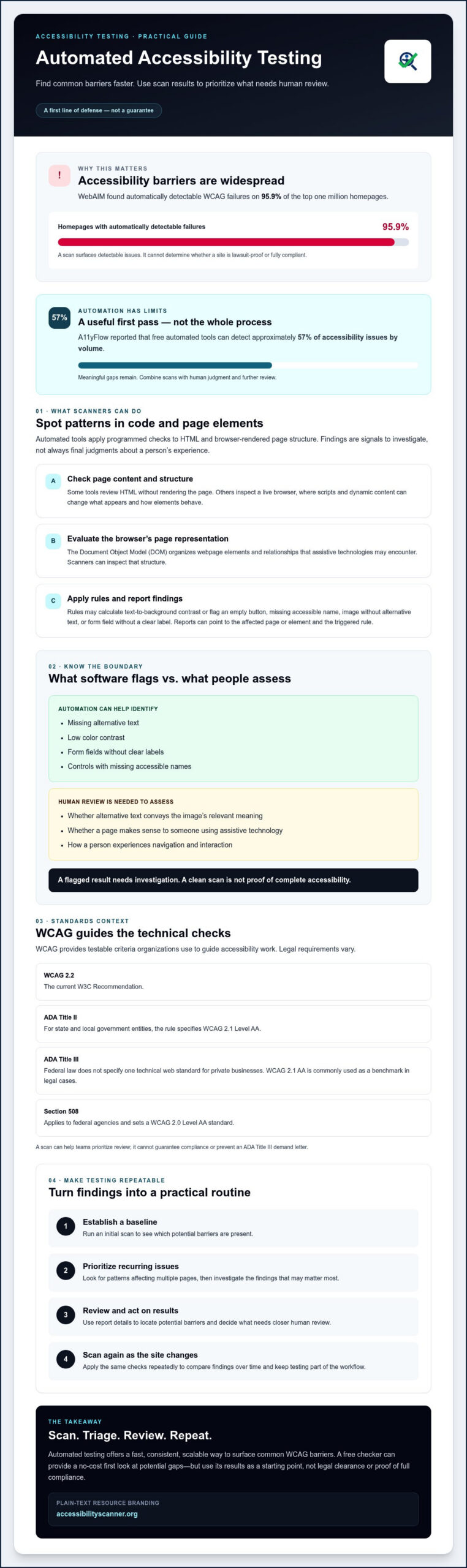
In August 2026, WebAIM found automatically detectable WCAG failures on 95.9% of the top one million homepages. A scan can’t tell you whether your site is lawsuit-proof, but automated web accessibility testing can expose common barriers before they become larger operational and legal concerns.
If ADA demand letters are on your mind, the technical detail in WCAG 2.2 can feel like another risk you don’t have the time or budget to untangle. That concern is reasonable. Automated checkers can quickly flag recurring issues, but they can’t assess every user experience or confirm full compliance. They’re a first line of defense, not a guarantee.
This guide explains what automated testing can detect, where it falls short, and how to use scan results to prioritize accessibility gaps. You’ll learn how to approach WCAG checks, build a repeatable testing routine, and use a free web accessibility checker as a no-cost first step. The goal is to move from uncertainty to practical triage without mistaking a clean scan for complete protection.
Key Takeaways
- Use automated web accessibility testing to surface common WCAG barriers quickly, then treat the results as a starting point rather than proof of full compliance.
- Understand how scanners examine page code and browser-rendered elements to flag potential accessibility issues.
- Separate issues software can identify from problems that require human judgment, such as whether alternative text conveys the right meaning.
- Build a repeatable process: establish a baseline, prioritize issues that affect multiple pages, and scan again as your site changes.
- Use a free accessibility checker to start identifying potential ADA and WCAG gaps without an upfront software cost.
What Is Automated Web Accessibility Testing?
Could a visitor reach your main content without a mouse? Can they understand an image if they can’t see it? Automated web accessibility testing uses software to scan website code and page elements for patterns that may create barriers under the Web Content Accessibility Guidelines (WCAG). Think of it as an early-warning system: it can flag missing alternative text, low color contrast, or form fields without clear labels, giving site owners a starting point for triage.
These checks matter because web accessibility concerns whether people with disabilities can perceive, understand, navigate, and interact with digital content. A scanner can identify detectable code and design issues, but it can’t determine whether alt text accurately describes an image or whether a page makes sense to someone using assistive technology. It’s a useful first check, not a complete usability assessment.
The Regulatory Framework: WCAG and ADA
WCAG provides testable technical criteria that organizations use to guide accessibility work. WCAG 2.2 is the current W3C Recommendation, but legal requirements vary. The ADA Title II rule for state and local government entities specifies WCAG 2.1 Level AA. For private businesses under ADA Title III, federal law does not specify one technical web standard; WCAG 2.1 AA is commonly used as a benchmark in legal cases. Section 508 applies to federal agencies and sets a WCAG 2.0 Level AA standard.
A scan can reveal issues that deserve prompt attention and help teams decide what to investigate. It can’t guarantee compliance or prevent an ADA Title III demand letter. Treat the results as a way to prioritize further review, not as legal clearance. If you want to assess your exposure more concretely, a free ADA compliance checker can help you establish a diagnostic baseline before a plaintiff firm identifies your vulnerabilities.
Key Benefits of an Automated Approach
Automation makes initial checks faster and more repeatable than reviewing pages one at a time. It can help teams spot recurring patterns across a site and establish a baseline without relying on one person to remember every common issue. A11yFlow reported in July 2026 that free automated tools can detect approximately 57% of accessibility issues by volume. That leaves meaningful gaps, so scanning is a first step, not the whole process.
- Speed: Scan pages to surface common issues quickly and direct attention to findings that may matter most.
- Consistency: Apply the same automated checks repeatedly to compare findings over time.
- Scalability: Scan large sites to find issues that appear across multiple pages.
For busy site owners, a free automated checker can provide an immediate, no-cost view of potential WCAG and ADA-related gaps. Use the findings to decide what needs closer review. That’s practical risk triage, not immunity from legal exposure.
The Mechanics: How Automated Scanners Detect Barriers
A scanner doesn’t assess a page the way a person does. It runs programmed checks against the page’s code and browser-rendered structure, looking for patterns associated with accessibility barriers. Automated web accessibility testing can uncover issues quickly, but a flagged result is a signal to investigate, not always a final judgment about how a person will experience the page.
From HTML to a Readable Report
Some tools perform static analysis, reviewing HTML without rendering the page. This can reveal problems such as an image element with no alternative text or a control missing an accessible name. Other checks inspect a page in a live browser, where scripts and dynamic content can change what appears and how elements behave.
The Document Object Model (DOM) is the browser’s structured representation of a webpage. Inspecting it helps scanners evaluate the elements and relationships assistive technologies may encounter.
Rules-based algorithms compare detectable properties against test criteria. For example, a contrast check can calculate the ratio between text and its background, while another rule can flag an empty button or check whether an element has an accessible name through text or an aria-label. The World Wide Web Consortium’s Web Accessibility Evaluation Tools List offers a vendor-neutral way to explore evaluation tools and their stated features.
Reports translate technical findings into issues a site owner can investigate. They may identify the affected page or element, the rule that was triggered, and details that help locate the potential barrier. Reports differ by tool, so check whether a finding includes enough context to distinguish a repeated issue from separate instances.
Common Violations Caught by Automation
Scanners are useful for finding detectable patterns that can block or confuse users. Typical examples include:
- Missing alternative text: An image lacks text that conveys relevant information to someone who can’t see it. A scan may detect that text is absent, but it can’t reliably determine whether existing text is meaningful.
- Empty links or buttons: A control has no accessible name, leaving screen reader users without a clear indication of its purpose.
- Insufficient color contrast: Text and background colors may be difficult to distinguish. WCAG AA contrast criteria include a 4.5:1 ratio for normal text and 3:1 for large text.
The Accessibility Tree: What the Browser Exposes
The accessibility tree is a browser-generated view of interface elements, their roles, names, and states, exposed to assistive technologies. Scanners can inspect this information, but they don’t fully reproduce a screen reader’s experience. Semantic HTML, such as using a real button for an action, gives browsers clearer structure to expose. Custom or poorly labeled elements can obscure that structure.
For an initial review, a free web accessibility checker can help surface potential issues for further investigation.
Automated vs. Manual Testing: Navigating the Boundaries
A clean scan can still leave real barriers undiscovered. Automated tools are good at checking repeatable, code-based rules across many pages. Human evaluation adds context: does the page make sense when someone navigates by keyboard, listens with a screen reader, or relies on captions? These approaches solve different problems. Use automation to find common issues at scale, not to certify that every person can use your site.
You may see a “30–40% rule” used to describe how much automation can detect. Treat it as a rough industry shorthand, not a fixed ceiling or guarantee. Detection varies with the tool, the pages tested, and the type of issue. A scan with no flags doesn’t prove there are no accessibility barriers. That false sense of security can leave usability problems unaddressed and risks misunderstood.
What Automation Misses
Software can flag a missing label. It can’t reliably judge whether a label or image description communicates the right meaning in context. Human evaluation is also needed to assess whether keyboard navigation feels logical, whether captions accurately represent speech and relevant sounds, and whether ARIA attributes support rather than confuse assistive technology users.
For example, a page may include captions, yet those captions could omit speaker changes or important audio cues. A keyboard user might reach every control, but in an order that makes a checkout flow difficult to follow. These barriers depend on how the whole experience works, not just whether individual elements pass a rule.
The Hybrid Strategy
Make automated scanning the repeatable first filter. Run scans regularly, such as after substantial site changes, to catch detectable regressions and identify patterns across pages. Then use structured human evaluation to examine interactions and content quality that software can’t judge. An annual deep-dive may suit some teams, but set the cadence based on site changes, user needs, and risk rather than treating one schedule as a compliance guarantee.
Use reports to guide investigation, not as a blind repair queue. Prioritize issues by their potential impact, how many pages or tasks they affect, and whether they block access to essential content or functions. Confirm what a finding means in context before deciding what to address.
- Automate repeatable checks to surface common, detectable issues at scale.
- Evaluate with people to uncover confusing flows, misleading content, and assistive technology barriers.
- Recheck after changes so new releases don’t reintroduce detectable problems.
This is the practical boundary of automated web accessibility testing: it brings speed and consistency to the first pass, while human judgment helps assess the experience beyond the scan. Together, they give teams a clearer basis for prioritizing accessibility work without mistaking a tool’s report for proof of full compliance.
Integrating Automated Scans into Your Workflow
A scan is most useful when it leads to a clear next step. Build automated web accessibility testing into a repeatable triage process, from baseline checks to follow-up scans. Automated findings identify potential issues; your team decides what to investigate, who owns the work, and how to verify changes.
A Risk-First Workflow
- Establish a baseline. Scan key pages, templates, and user journeys. If the tool supports broad URL coverage, use it to build an initial inventory. Record which pages were included so future scans can be compared fairly.
- Find patterns with broad reach. Look for the same finding across shared components, such as the header, footer, or navigation. A repeated issue may affect many pages, so addressing the underlying shared element can be more effective than treating each result as a separate problem.
- Assign investigation and fixes. Send each verified finding to the person or team responsible for the affected content or code. Prioritize barriers that may block essential tasks, such as completing a form or purchase. A scanner reports potential gaps; your organization’s team owns decisions and changes.
- Check again after updates. Scan changed pages before publication when practical, then recheck after updates to see whether reported issues remain and to catch regressions.
Homepage issues can affect many visitors because the homepage is often an entry point to the rest of a site. That alone doesn’t establish that they carry the highest legal risk; assess each issue in context.
Prioritizing Fixes and Setting a Schedule
Start with findings that combine broad reach and serious impact. For example, a missing accessible name on a shared navigation control may appear across the site, while an issue on a checkout or form page may obstruct a critical task. Review the affected element and user journey before setting priority. A scanner’s severity label can help sort findings, but it shouldn’t replace context.
Ad-hoc testing happens after someone remembers to scan. Regression testing repeats checks after site changes to catch issues that return or are newly introduced. Set a schedule that matches your publishing and development pace: scan more often when pages or components change frequently, and include a check in the release process where possible. Content creators can use a free web accessibility checker to scan pages fast for ADA and WCAG violations, while technical teams assess code-related findings.
For a practical baseline, run a free accessibility scan and use the results to plan your next review. Treat the report as a starting inventory, not proof that every page or interaction is accessible.
Immediate Risk Triage with AccessibilityScanner.org
Uncertainty can stall accessibility work. A free scanner gives site owners a practical first step: scan a page, review detectable WCAG-related findings, and decide what needs closer attention. AccessibilityScanner.org provides automated issue detection for independent checking, with a focus on WCAG 2.1 and 2.2. There’s no software cost to begin this initial triage.
Automated web accessibility testing is most useful when its scope is clear. A scan can identify potential barriers, but it doesn’t establish that a site complies with the ADA, replace human evaluation, or provide legal advice. Treat the report as a working record of what the tool detected at that point in time, not as a guarantee or complete audit.
Your First Scan: What to Expect
Start by entering your website URL and reviewing the findings the scanner detects. The report can help identify the affected page and type of issue, giving your team a more concrete starting point than guesswork. Share relevant results with your development team or agency so they can investigate the underlying code and determine appropriate next steps. Confirm findings in context before prioritizing them.
Keep a copy of the results with the date and pages checked. That creates a useful reference for later comparisons, but it doesn’t show issues the scan couldn’t detect or pages it didn’t evaluate. Use it to track questions and potential gaps, not to claim full compliance.
Moving Toward a More Accessible Future
Waiting for a complaint or demand letter isn’t a sound way to discover that visitors are facing barriers. Starting with a scan helps turn concern into an actionable list for review. An accessible experience can also make content and services easier to use for more people, supporting a better customer experience without treating accessibility as only a legal concern.
Begin with a no-cost check, review what it finds, and decide what deserves further investigation. Scan your website for free now at AccessibilityScanner.org. A scan won’t settle every compliance question, but it can give you a clear first view of detectable issues and help your organization choose its next step.
Make Accessibility Triage Your Next Step
Automated web accessibility testing gives you a fast way to spot detectable barriers and prioritize what deserves attention. It can’t evaluate every user experience or guarantee legal compliance, so treat scan results as a starting point and build accessibility checks into your ongoing workflow.
The practical takeaway is simple: establish a baseline, investigate issues that affect key pages or tasks, and scan again as your site changes. You don’t need to wait for a demand letter to begin identifying potential gaps.
AccessibilityScanner.org offers free ADA and WCAG issue detection. Use the results to brief your development team or agency, then decide what needs further review. A scan isn’t legal advice or a complete assessment, but it can help turn uncertainty into a clear next step.
Frequently Asked Questions
Is automated web accessibility testing enough to be ADA compliant?
No. Automated web accessibility testing can identify detectable barriers, but it can’t evaluate every interaction, content choice, or assistive technology experience. A scan also can’t guarantee ADA compliance or prevent legal action. Use results to prioritize potential issues, then assess barriers that require human judgment, such as whether an image description is meaningful. For legal questions about your organization’s obligations, consult a qualified legal professional.
What percentage of accessibility issues can automated tools find?
There isn’t one fixed percentage because detection varies by tool, website, and issue type. A July 2026 report from A11yFlow estimates that free automated tools can detect approximately 57% of accessibility issues by volume. Treat that as an estimate, not a guarantee for a specific site or scanner. Automated checks are useful for surfacing common patterns, but issues that require context or user judgment can remain undetected.
How often should I run an automated accessibility scan on my site?
Set scan frequency based on how often your site changes. For a site with frequent releases or new content, scan changed pages as part of the publishing or release process. For less active sites, schedule periodic checks and scan again after significant updates to templates, navigation, forms, or other shared components. Keep dated results so your team can compare findings and spot regressions over time.
Can automated testing tools fix the accessibility errors they find?
Some products may offer suggestions or remediation features, but detection and repair are different functions. AccessibilityScanner.org provides automated issue detection; it doesn’t make code changes or fix reported issues. Use the findings to identify what needs investigation, then share relevant details with the person or team responsible for your site. Confirm that any changes address the barrier without creating new problems.
Do automated scanners work on password-protected or staging sites?
It depends on the scanner and how the site is protected. A scanner must be able to reach the pages it checks; a login wall, firewall, or restricted staging environment may prevent access unless the tool supports an appropriate access method. Don’t assume a public-site scan covers private pages. Check the scanner’s instructions and confirm which URLs were actually evaluated before relying on its report.
What is the difference between WCAG 2.1 and WCAG 2.2 for automated testing?
WCAG 2.2 is the newer W3C Recommendation and adds success criteria to WCAG 2.1 while retaining its existing criteria. Automated tools check only the rules they’re designed to evaluate, so results depend on the tool’s supported criteria and selected settings. Some regulations still reference WCAG 2.1, while WCAG 2.2 is the current version. Check which version your scanner evaluates and which standard applies to your situation.
Will an automated scan slow down my website’s performance?
A scan’s effect depends on how the tool works and how it accesses your pages. A scanner that visits pages from outside your site may create requests during the scan, while a tool that adds code to visitors’ pages could have a different performance impact. Check the tool’s scanning method and monitor site performance if you have concerns. Don’t assume every scanner affects visitors in the same way.
Are there free tools for automated web accessibility testing?
Yes. AccessibilityScanner.org offers a free automated web accessibility checker for independently checking websites for ADA- and WCAG-related issues. It provides detection and reporting, not manual audits, code remediation, or legal advice. A free scan can help establish an initial view of detectable barriers and guide further investigation. Review the tool’s scope and limitations, and don’t treat a report with no findings as proof of full accessibility.
Start your free accessibility scan to identify potential issues and decide what to review next.